Voice following can be useful if your delivery includes natural pauses, changes in pace or moments where you want to emphasise a point. It pairs well with the habits in How to read a teleprompter naturally.
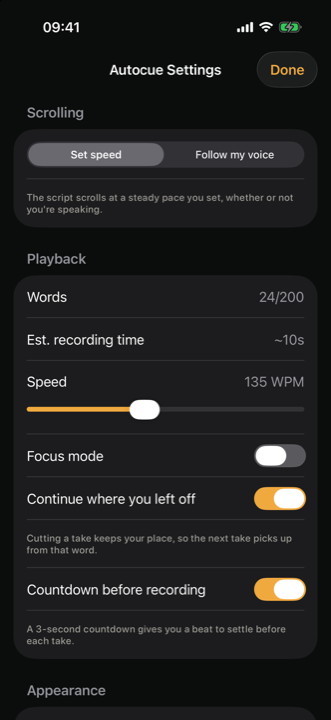
01 / Two ways to scroll
Voice following versus automatic scrolling
With automatic scrolling, you choose a speed for the script. This can work well when your delivery is steady and you prefer a predictable pace.
With Follow My Voice, the script is designed to progress with your speech and wait when you slow down. This can be helpful when you want more freedom to pause. It is still worth rehearsing to make sure the feature suits your voice, environment and recording setup.
Neither approach is inherently better for every video. Try a short test with each and choose the one that lets you focus on speaking clearly.
02 / Prepare
How to prepare for a voice-followed recording
1. Add and check your script
Write your script in InOne, paste an existing draft or import a supported text file. Read it aloud and make awkward sentences easier to say. A clear script makes it easier to stay oriented, whichever scrolling mode you choose. See How to write a short video script.
2. Choose Follow My Voice
On the recording screen, select Follow My Voice and set the text size and placement so the words are easy to see. Check that the camera view and your framing look right before recording.
3. Rehearse in your recording environment
Practise a few lines at your normal speaking volume. Pause between ideas and check that the script’s movement feels comfortable. A quiet room and clear speech can help the device hear you. Test your microphone and setup before a longer recording.
4. Record and review
Use the countdown if you want a moment to prepare, then record your message. If you stumble, pause and repeat the sentence. Watch the take back to check both your delivery and the recording quality.
If speech recognition is unavailable on your device, or voice following does not work well in your setting, use adjustable automatic scrolling instead.
03 / Questions
Questions
Does a voice-activated teleprompter stop when I stop speaking?
InOne’s Follow My Voice is designed to wait when you pause and move with your speech. Because it relies on device speech recognition, availability and performance depend on the device and recording conditions.
Can I use a teleprompter without voice recognition?
Yes. InOne also offers automatic scrolling with an adjustable speed. Practise a short section and change the speed until you can speak comfortably.
Can I fix mistakes after recording?
With InOne Pro, you can review a transcript, choose cuts and combine clips from different takes. InOne can find filler words and long pauses, but you decide what to remove.
Another take on the same idea is Read to camera without looking away. Find out more at InOne.