01 / The point
Explain the change, then the next step
Start by explaining what changed, who it helps and what viewers can do next. Then record a few takes and choose the clearest version of each section.
InOne brings a script, teleprompter and camera together on iOS. With InOne Pro, you can also review cuts, combine selected takes and add captions before exporting.
02 / Audience
Decide who the update is for
An existing customer may want to know how a change affects their current workflow. A prospective customer may first need to understand the problem your product solves. Pick a primary audience and explain any context they need.
Avoid trying to announce every change in a single short video. Give the most useful update room to breathe, and link viewers to more detailed information when appropriate.
03 / The script
Use a four-part script
A simple product update can answer four questions:
- What changed? Name the update in plain language.
- Who is it for? Describe the people or situation it helps.
- Why does it matter? Explain the practical benefit without overstating it.
- What should viewers do next? Tell them where to learn more or how to get started.
We’ve added a new way to organise your projects. If you manage several projects at once, you can now group related work together. Open your projects page to try it.
Replace the example with details you have verified for your own product. For more on spoken scripts, see How to write a short video script.
04 / Setup
Make the setup easy to repeat
Position your iPhone at eye level, face a light source and choose a quiet location. Check the background and record a short sound and framing test. Select portrait or landscape based on where the update will be watched.
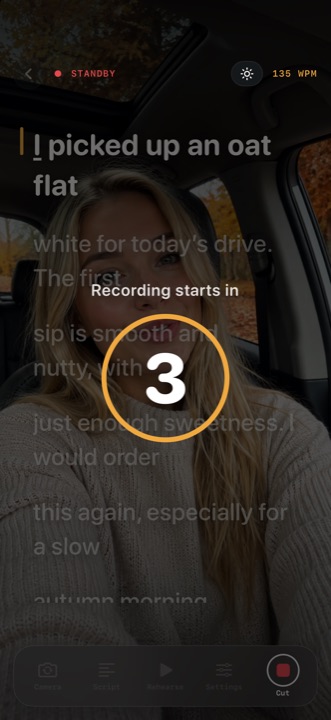
Put your script into InOne and adjust its appearance so you can read comfortably. Use automatic scrolling at a manageable speed or try Follow My Voice, which is designed to follow your speech when device speech recognition is available.
05 / Takes
Record more than one version
Speak as though you are explaining the update to one customer. If you stumble, pause and say the sentence again. Record a second take if you want to try a shorter explanation or a different opening.
Keep your camera position and lighting consistent between takes. This helps make the visual change less noticeable if you later join clips.
06 / The edit
Review the message and edit
Check that every product claim is accurate and that the action you suggest is available to the intended audience. With InOne Pro, you can review the transcript, choose cuts and combine the strongest clips from different takes. InOne can find filler words and long pauses, but you decide what to remove.
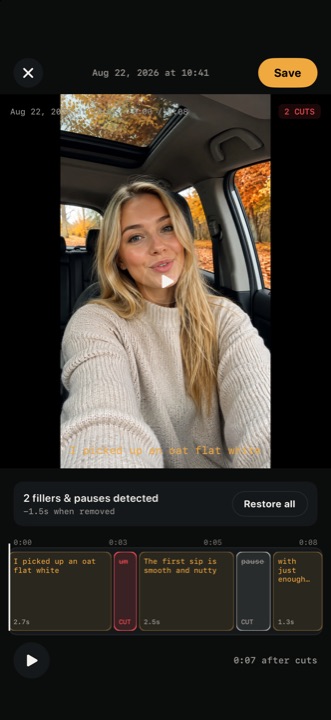
Add captions if useful, check them for product names and other details, and watch the complete video before exporting. If the update needs a product demonstration, pair the talking-head video with suitable, accurate visuals in your final publishing process.
07 / Length
How long should a product update video be?
Make it long enough to explain the change and next step clearly. Rehearse aloud, remove repetition and let the importance of the update determine the length rather than targeting an arbitrary number of seconds.
Explore InOne to prepare and record your next update. For the read itself, see How to read a teleprompter naturally.